Log in with Microsoft Entra ID

To log in to Artivive Bridge using Microsoft Entra ID, your Entra Admin first needs to complete a one-time setup. Here are the steps.

Before you start To use Microsoft Entra ID login, your Entra Admin first needs to complete the one-time admin setup described below. They also need to add the users who should have access to Artivive - through your Entra admin dashboard - so those users can then sign in with their Entra ID.

1.Go to Artivive Bridge

Open bridge.artivive.com and scroll to the bottom of the login page. You will now see Log in with Entra ID.
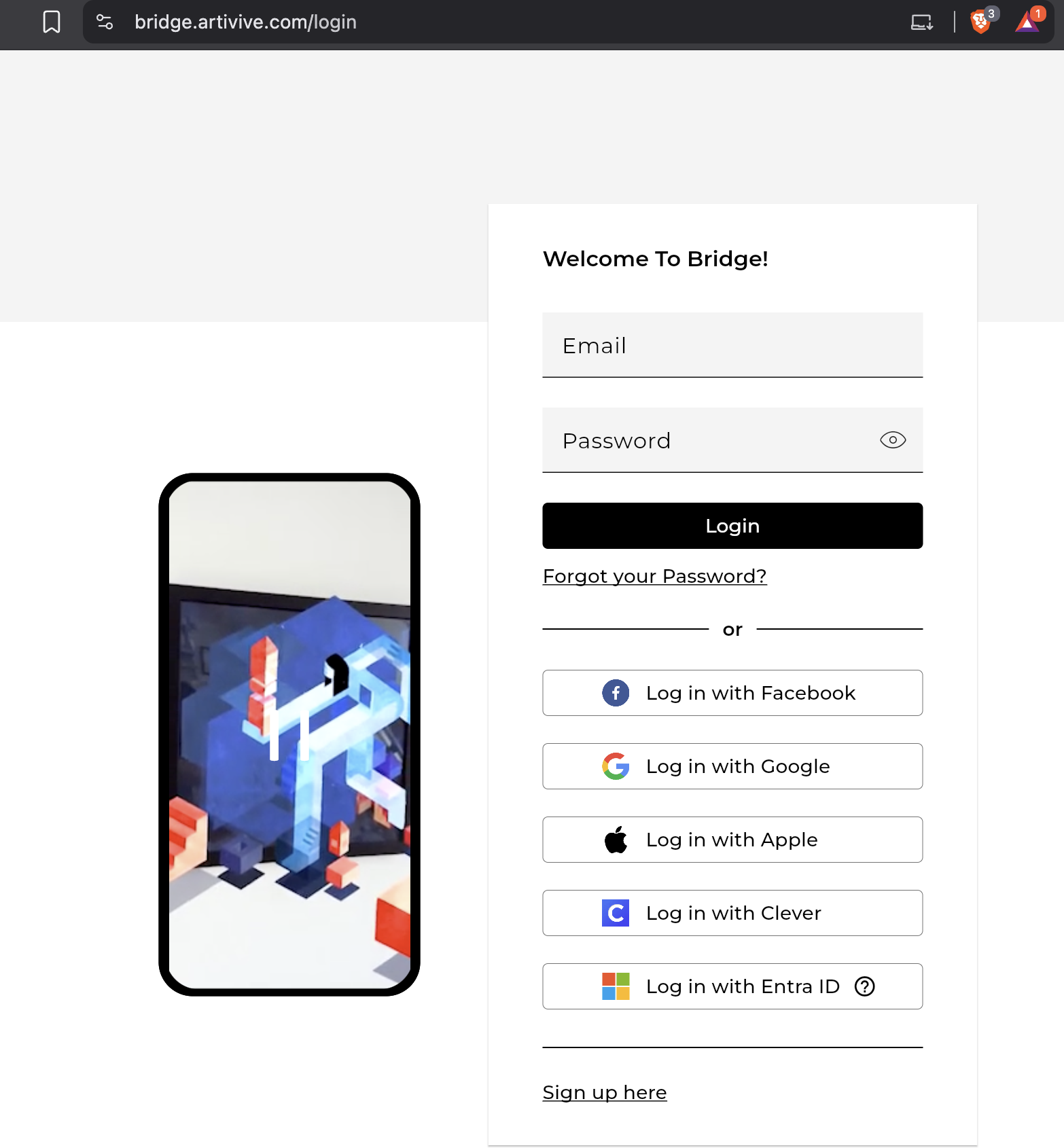
Bridge login page showing the Log in with Entra ID option at the bottom

2.Open the Entra ID setup

The Entra Admin should hover over the (?) icon next to the Entra ID login option and click on it.
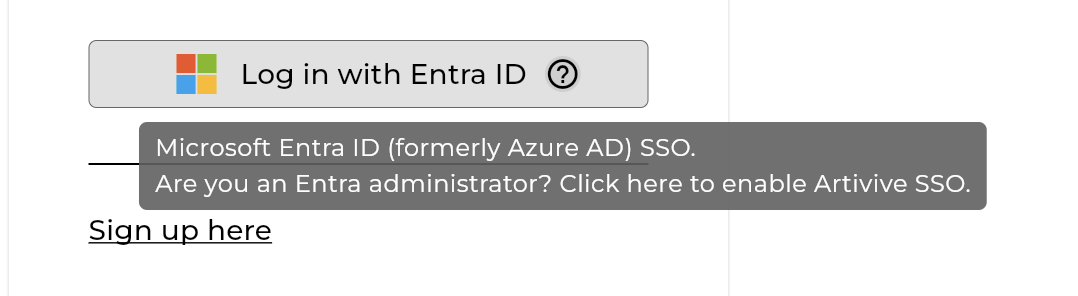
Hovering over the question-mark icon next to the Entra ID login option

3.Log in as the Entra Admin

After clicking the (?) icon, an additional option will appear underneath. Click on it and log in using the Entra Admin's Entra account.
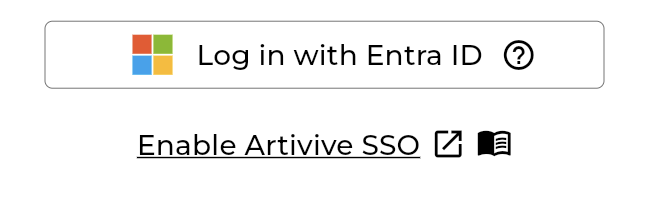
Enable Artivive SSO option shown under the Entra ID login button

4.Confirm the setup

An option will appear which you can click and log in with your Admin Entra email account.
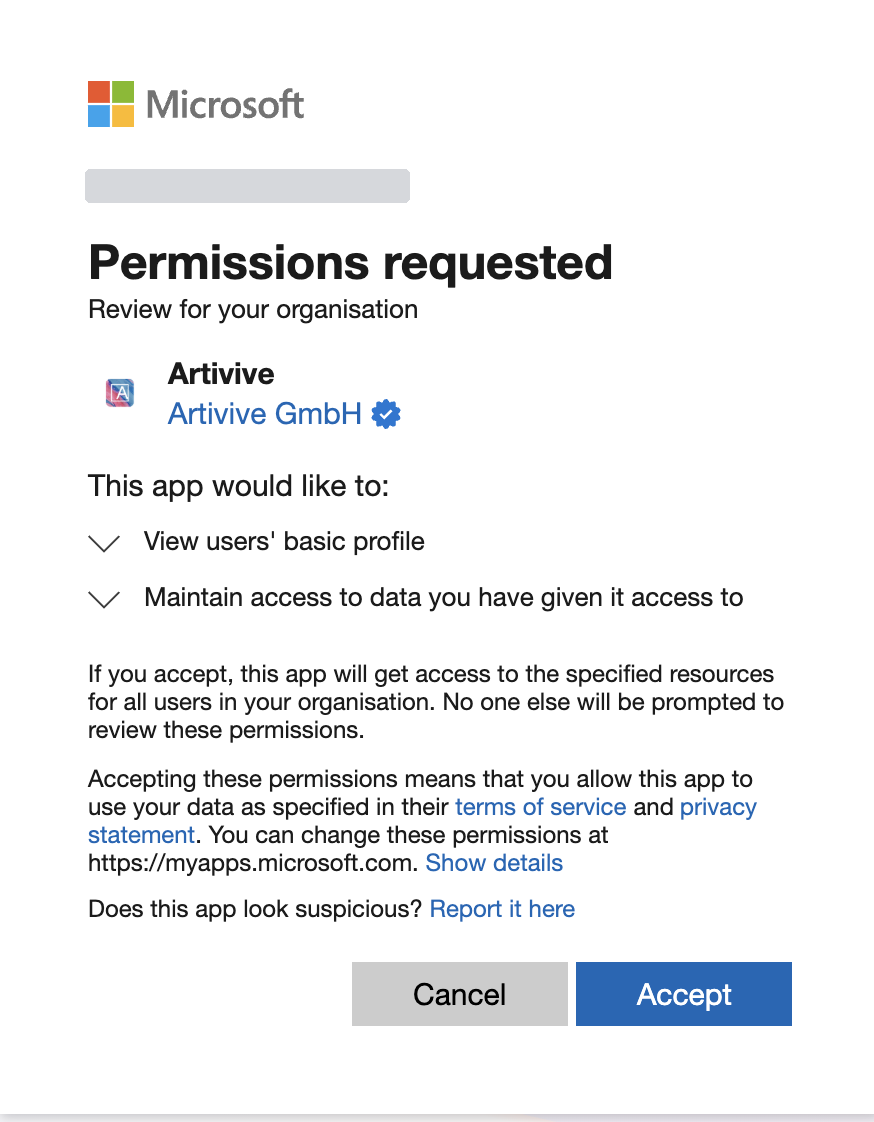
Microsoft Entra permissions consent screen for Artivive

After you set it up correctly you should see a success message in green like this:
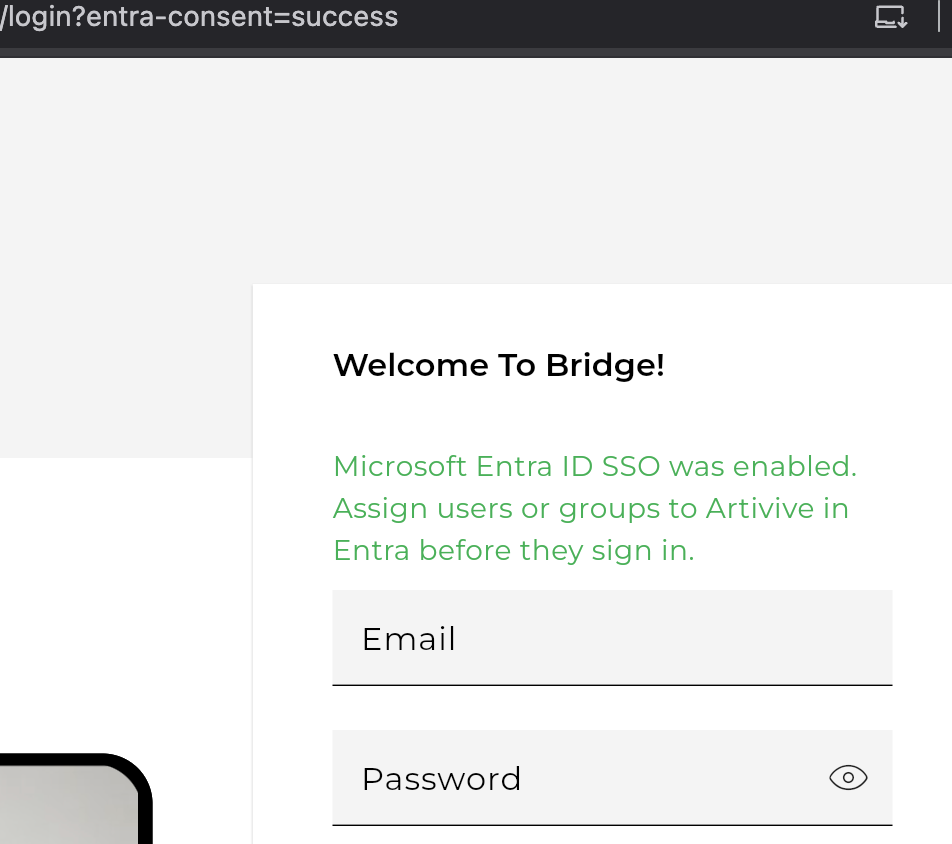
Green success message confirming Microsoft Entra ID SSO was enabled

5.Log in with Entra ID

After the success message appears, you can simply click Log in with Entra ID and sign in with an account that has access to Artivive in your Admin Entra dashboard.

Log in with Entra ID button

If you see an error

If the admin setup has not been completed, or if you have not yet been granted permission in the Admin Entra dashboard, you will see an error message.
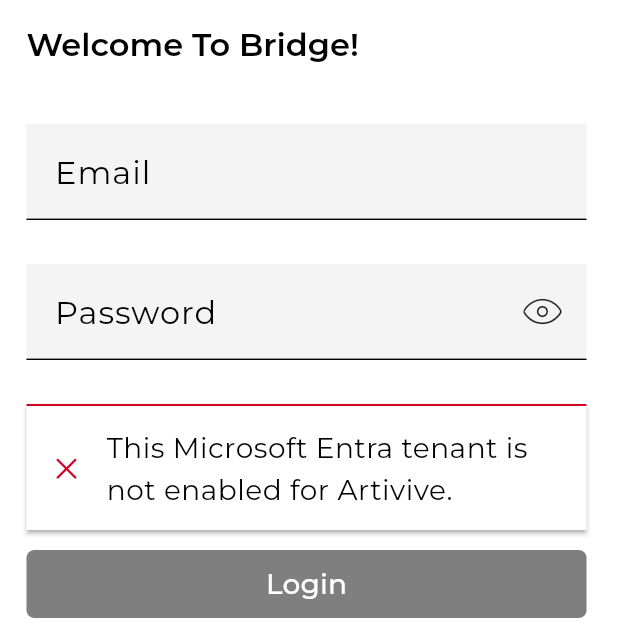
Error message: this Microsoft Entra tenant is not enabled for Artivive
Need a hand? If the login still does not work after setup, get in touch and we'll help.